DataEase UI
Welcome! This guide shows you how to move around the DataEase app.
Table of Contents
Section titled “Table of Contents”- Home Page
- Export Page
- Import Page
- Validation Results
- Import Progress & Results
- Task List
- Scheduled Tasks
- Servers
- Add Server
- Application Settings
- Plans
Home Page
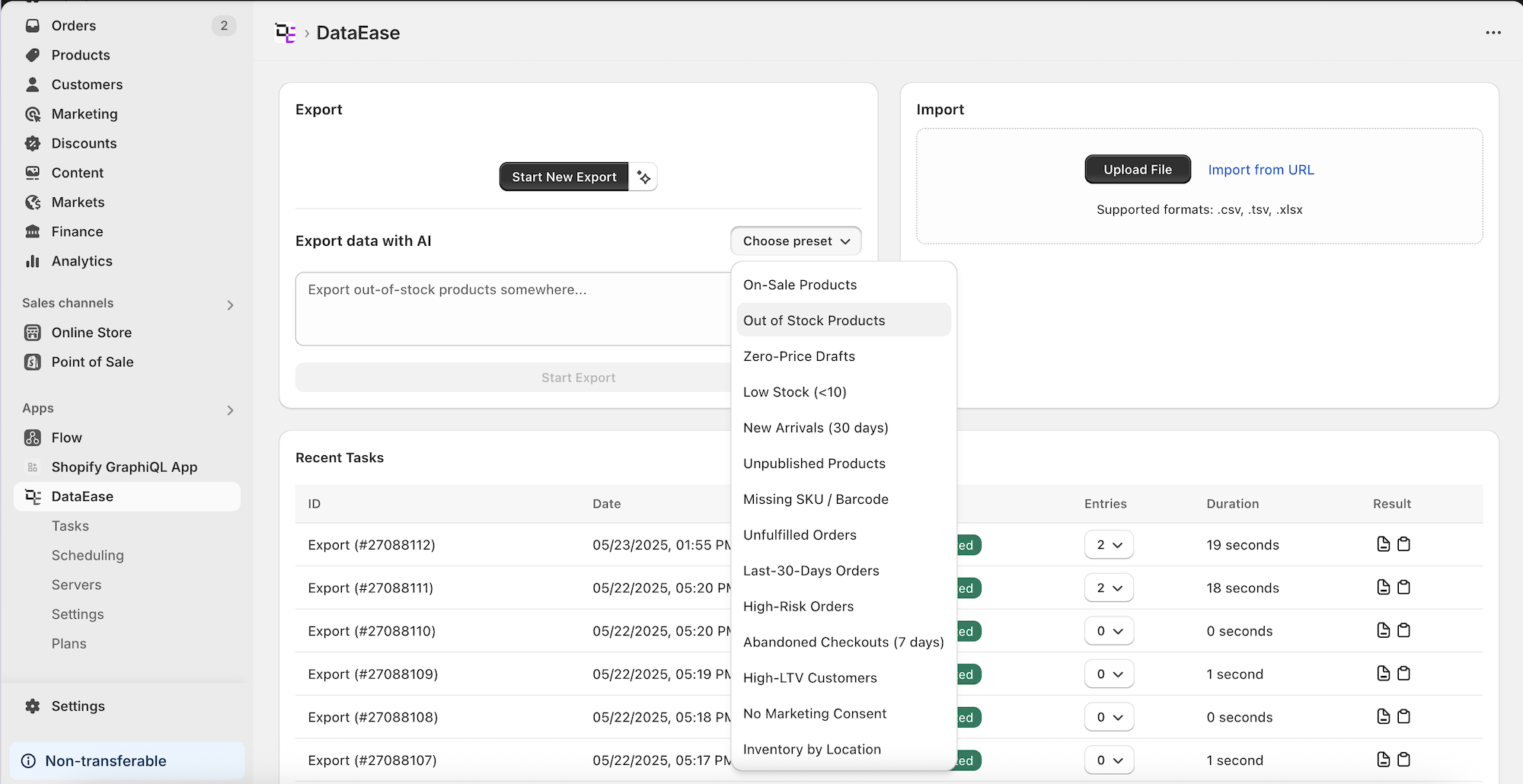
Section titled “Home Page ”- Start New Export - begins a brand-new export job.
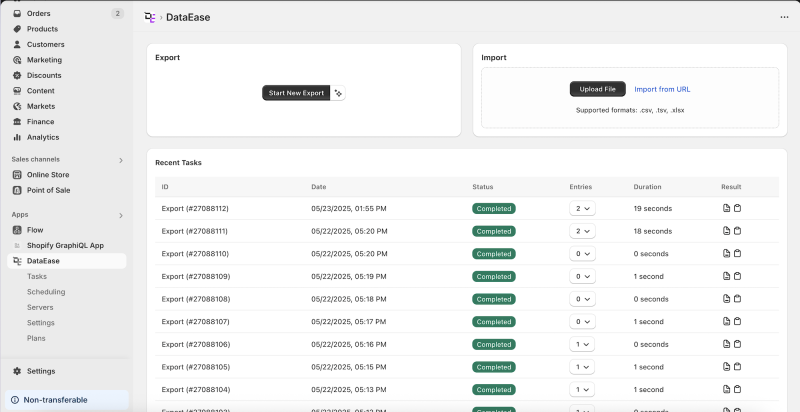
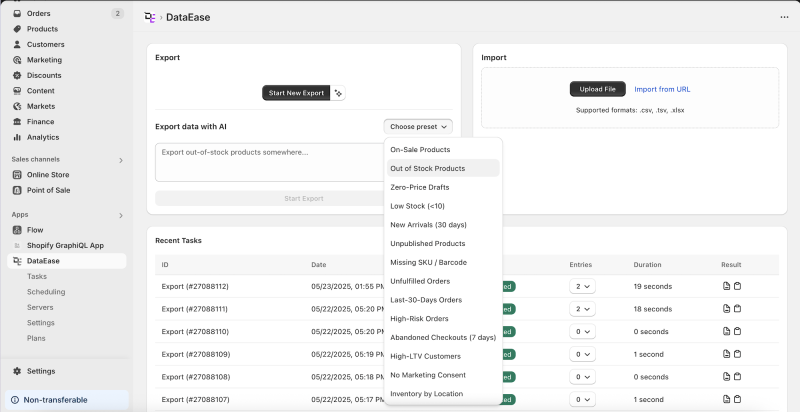
- AI Assistant - click the wand icon to ask the assistant to set up an export for you.
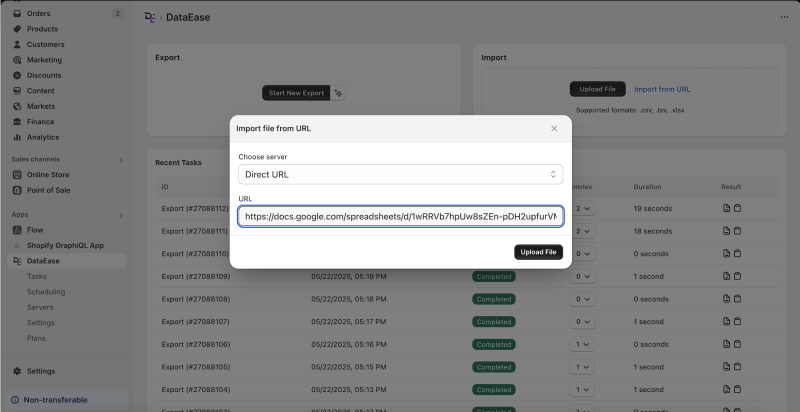
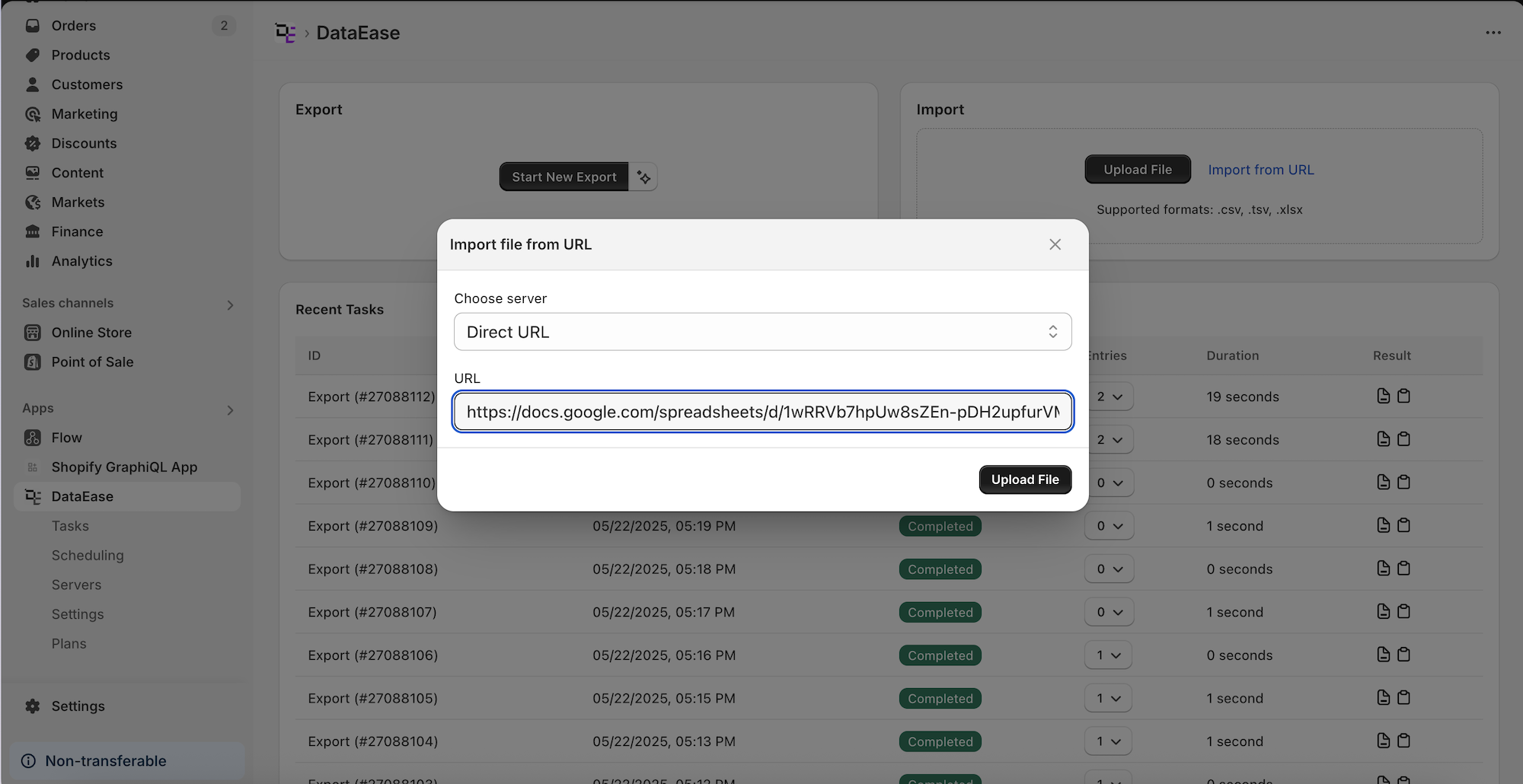
- Upload File / Import from URL - launch a data import.
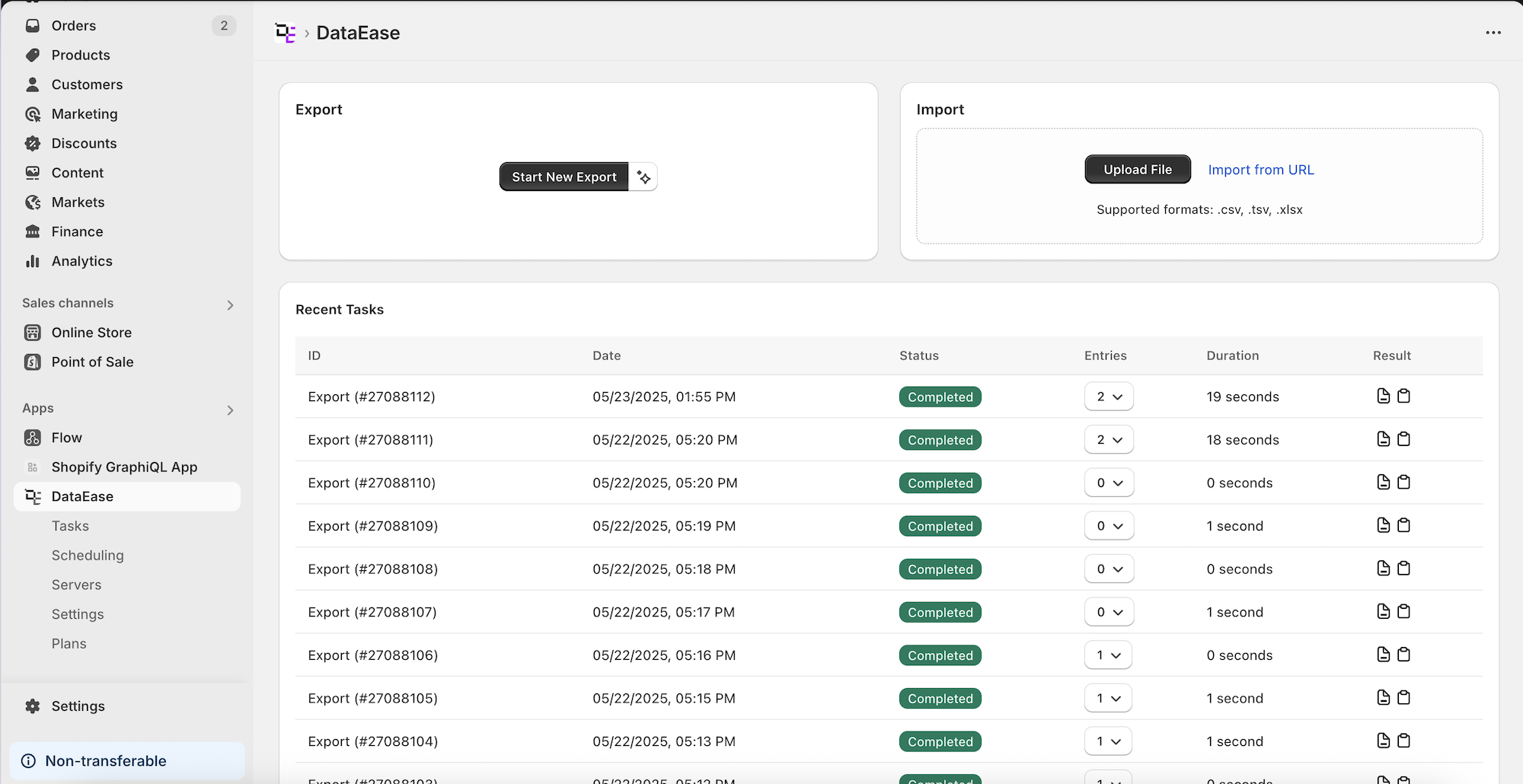
- Recent Tasks - list of latest export/import jobs. Each row shows:
- Job ID, date, and status (e.g., Completed)
- Entry count dropdown
- Result file download buttons
Export Page
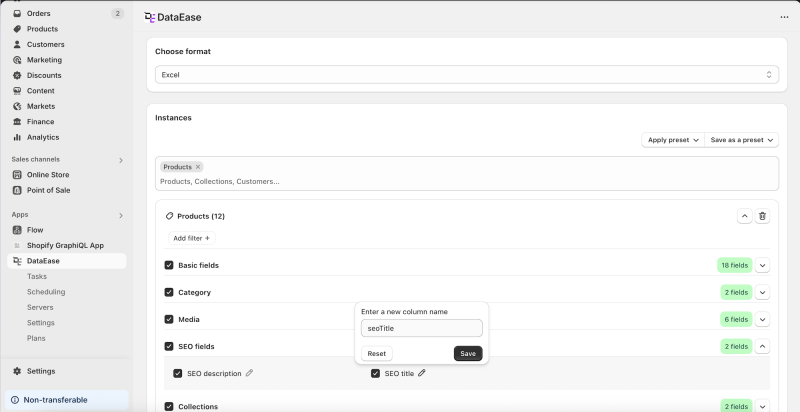
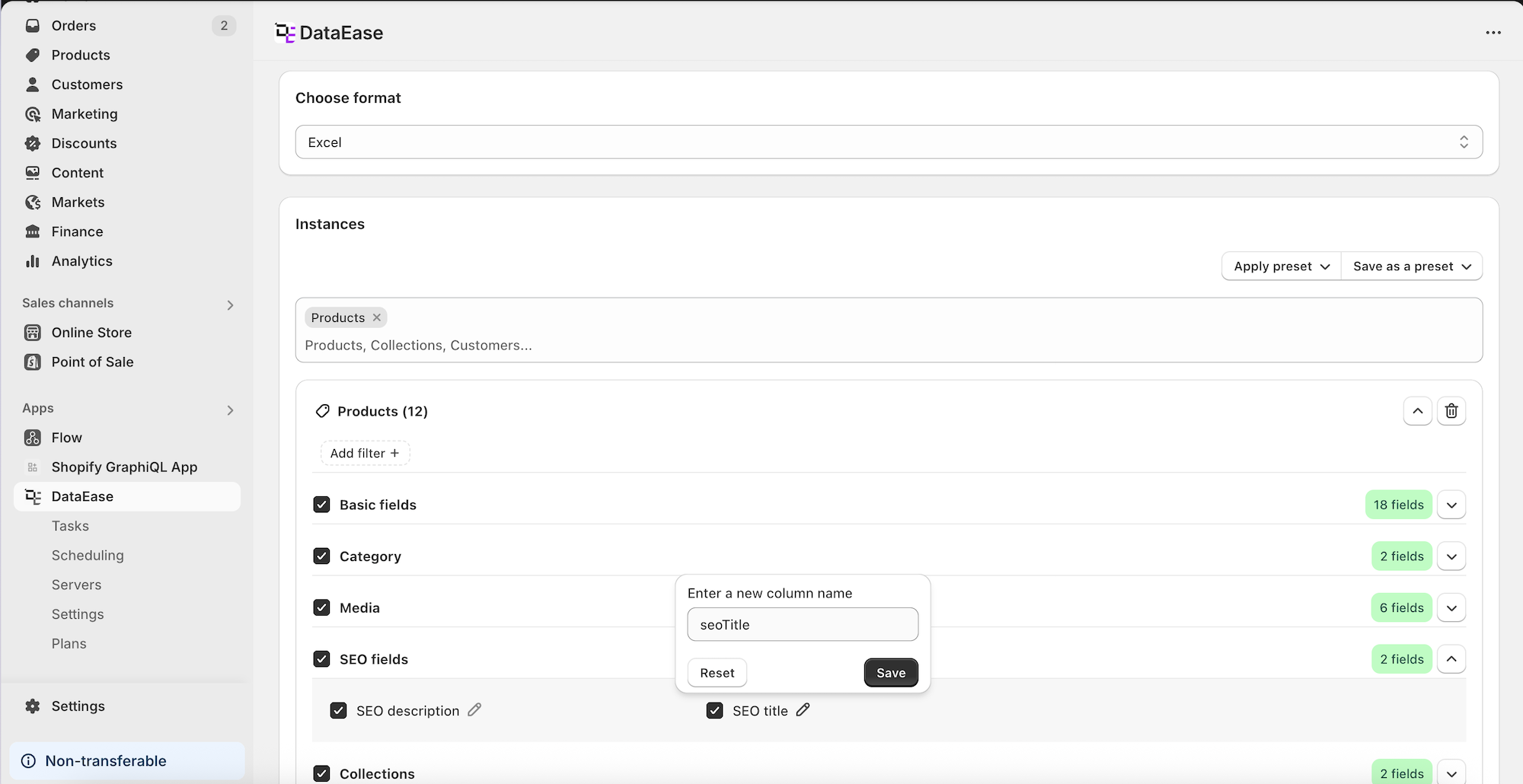
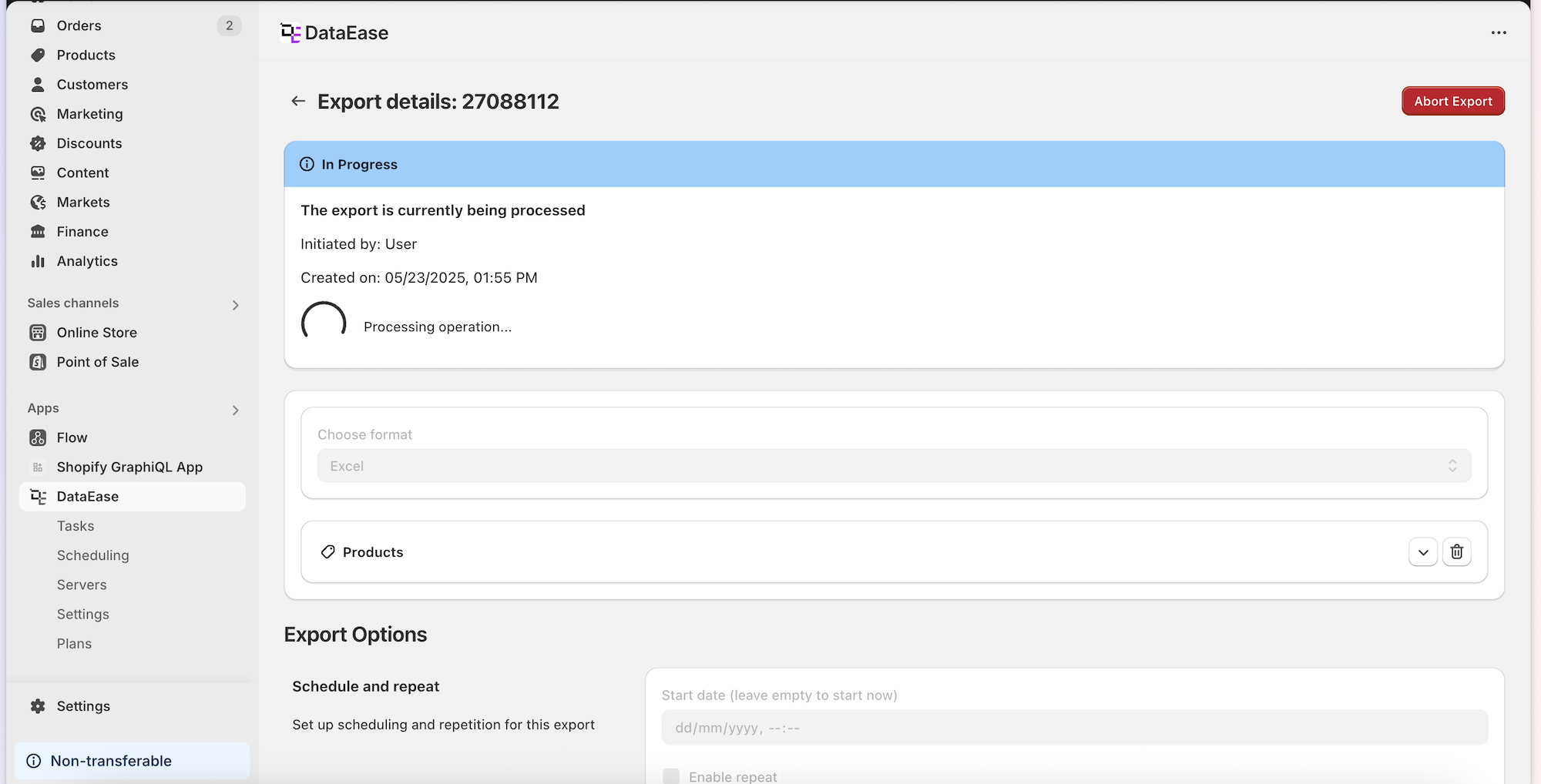
Section titled “Export Page ”- Choose format - pick Excel or CSV
- Select entities - choose the data types to export (e.g., Products)
- Pick fields - select specific fields and rename them
- Presets - save/export current config or apply an existing one
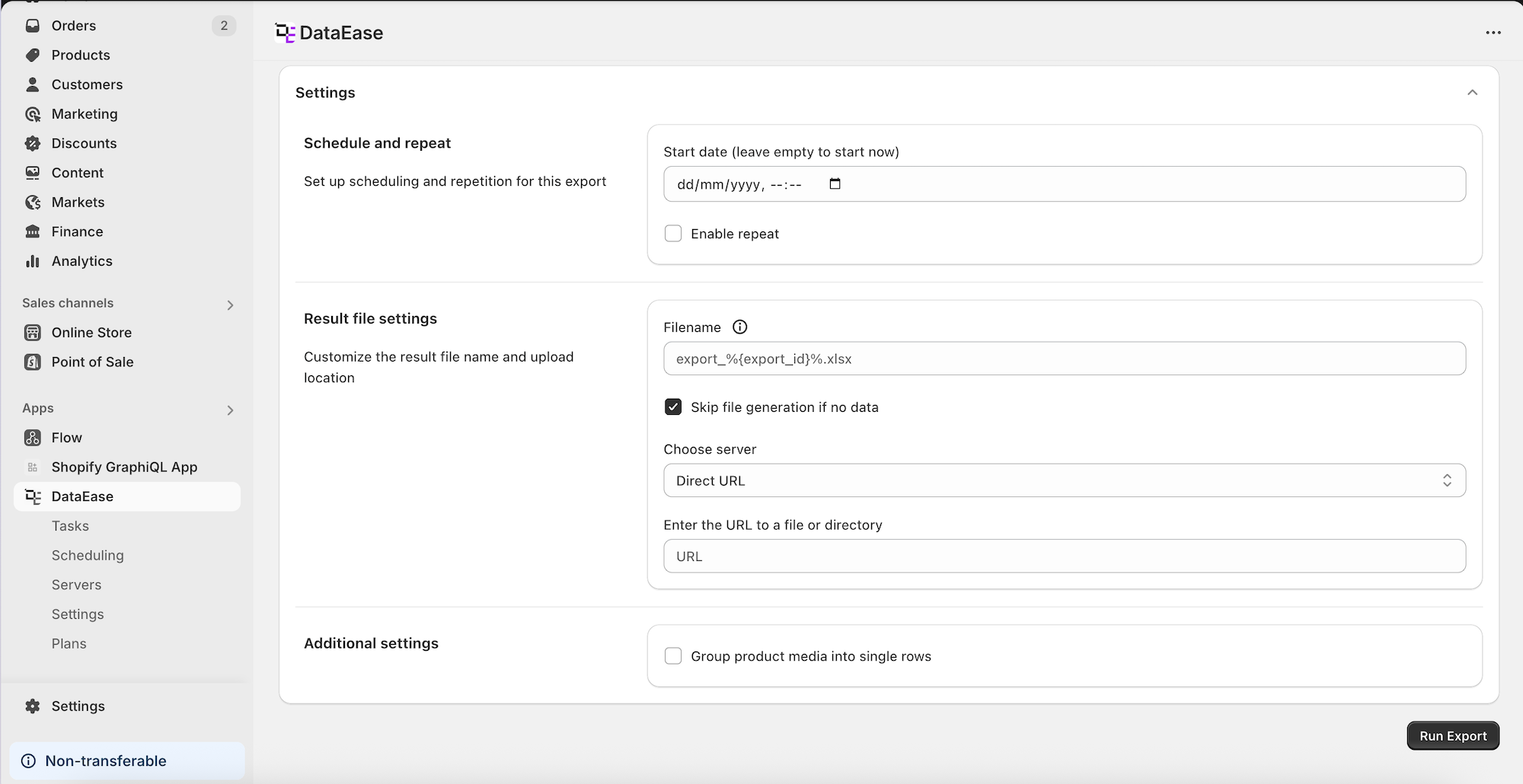
- Export Options:
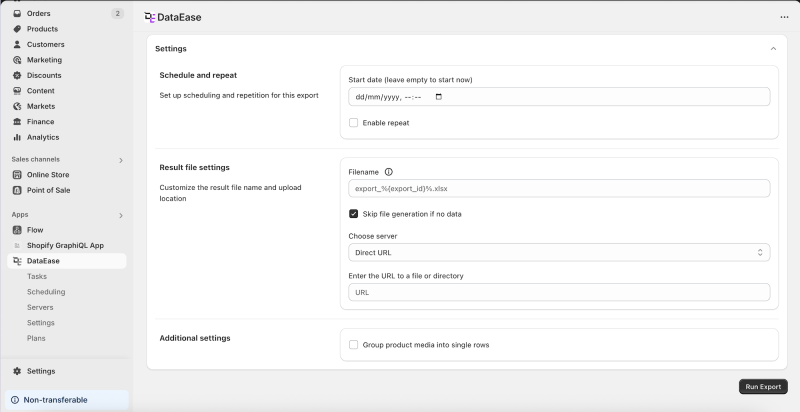
- Set schedule and repetition
- Choose file storage and filename pattern
- Group product media into one row (with
;separator)
- Progress bar & Abort - see live status and cancel with Abort Export
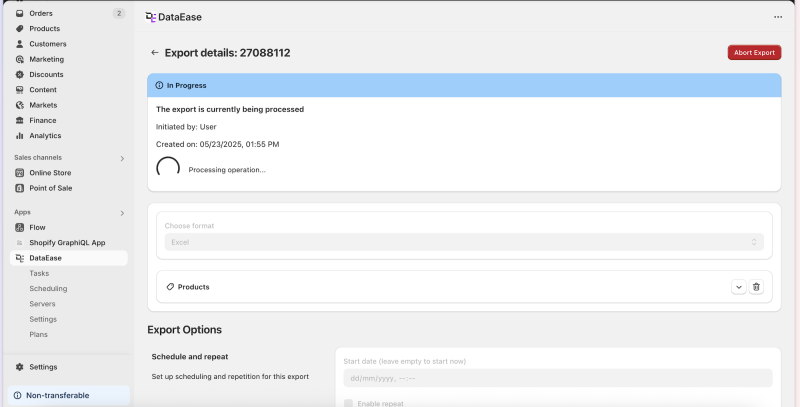
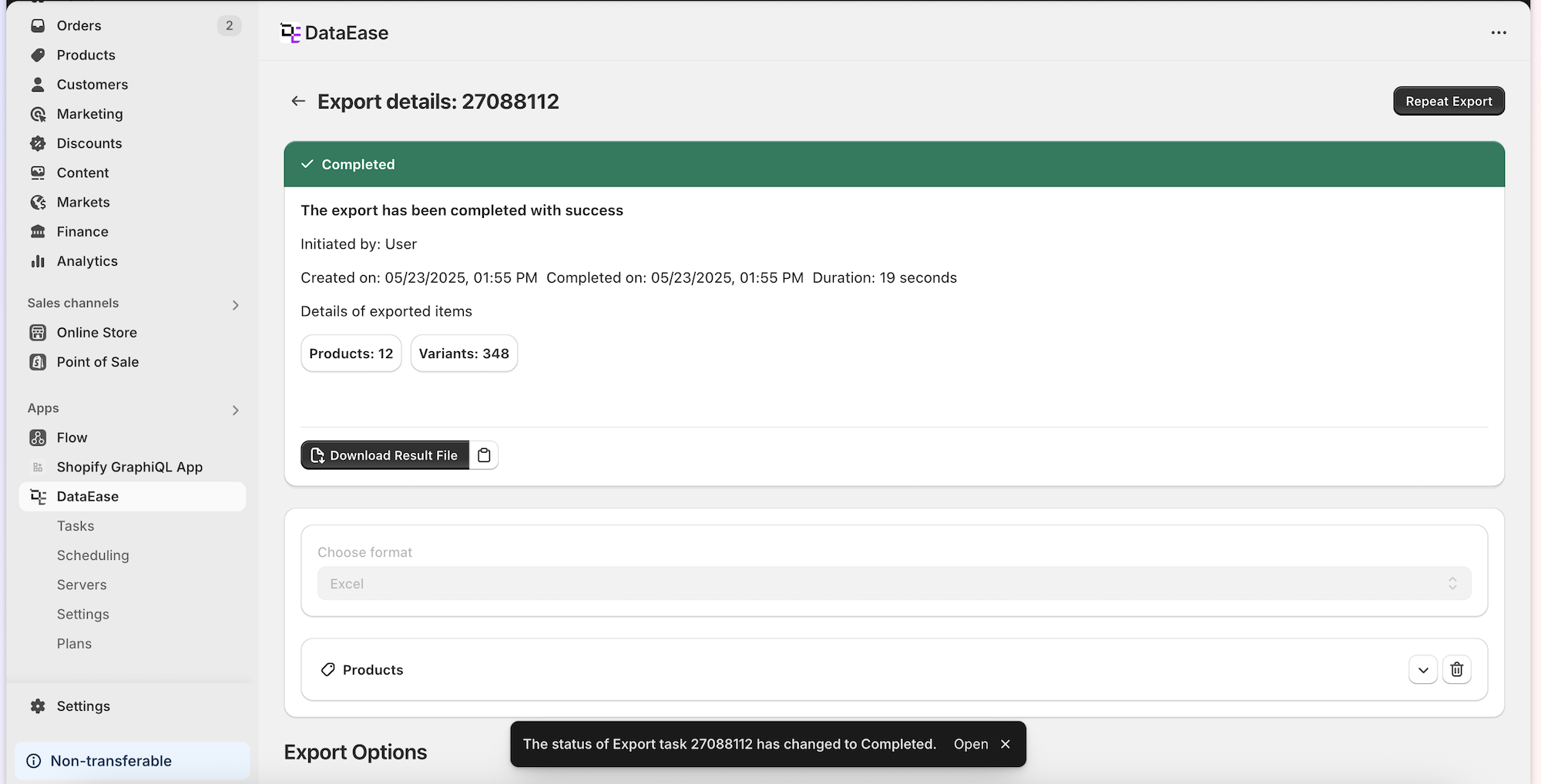
- After completion:
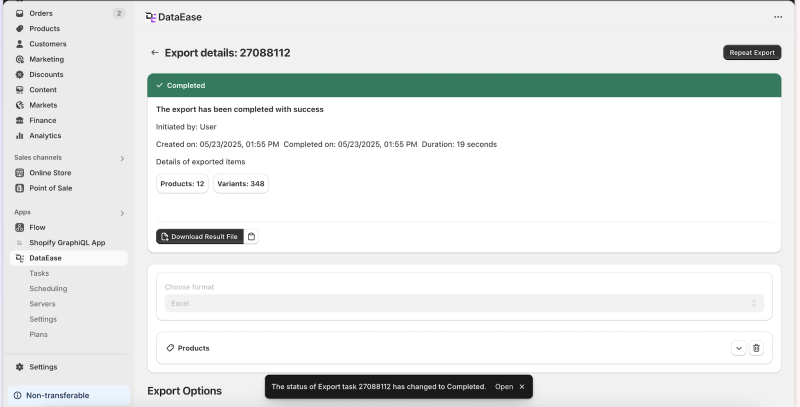
- See what was exported and how many rows
- Download, Copy Link, or Run Again
Import Page
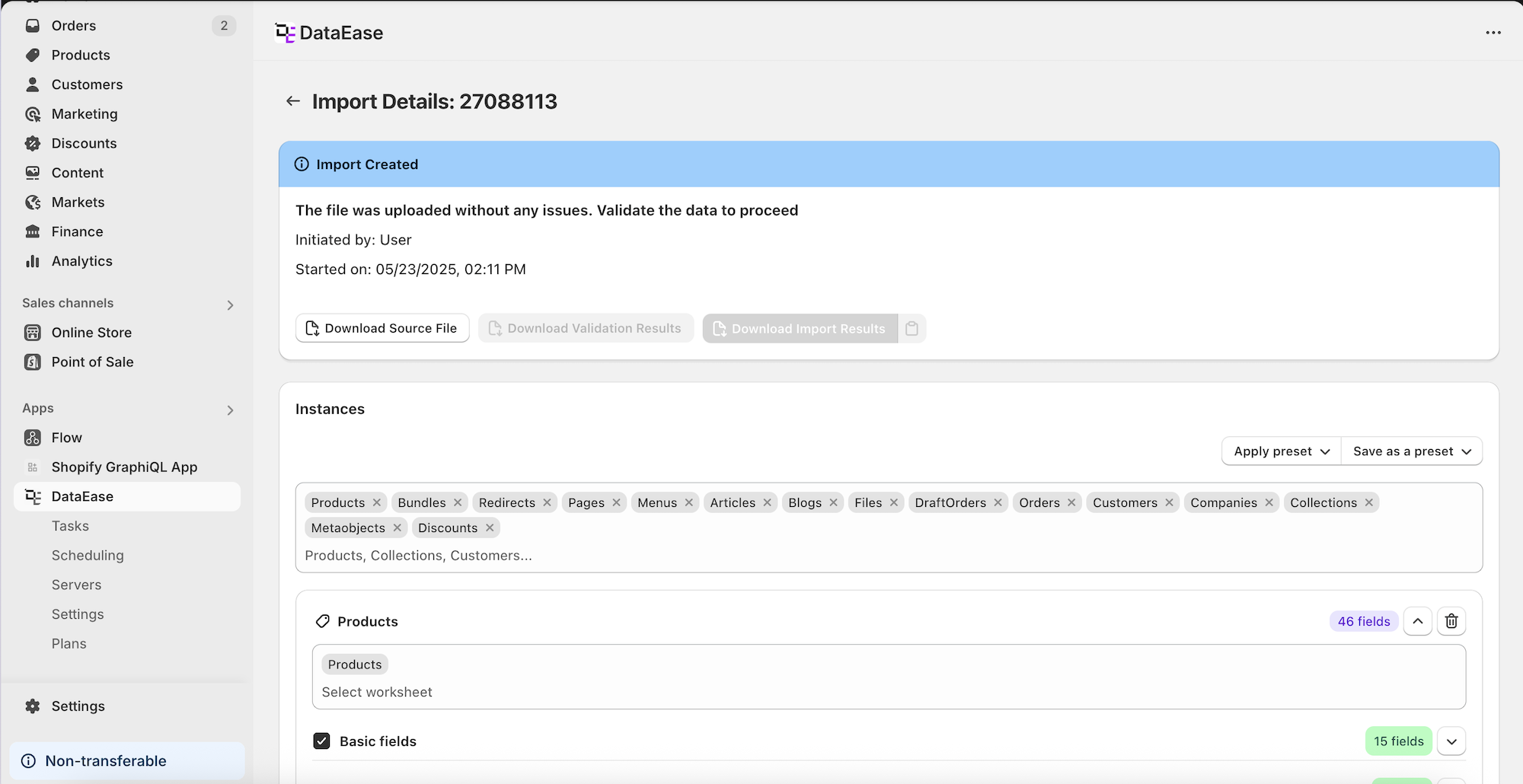
Section titled “Import Page ”- Upload file or Import from URL
- Banner shows who created the task and when
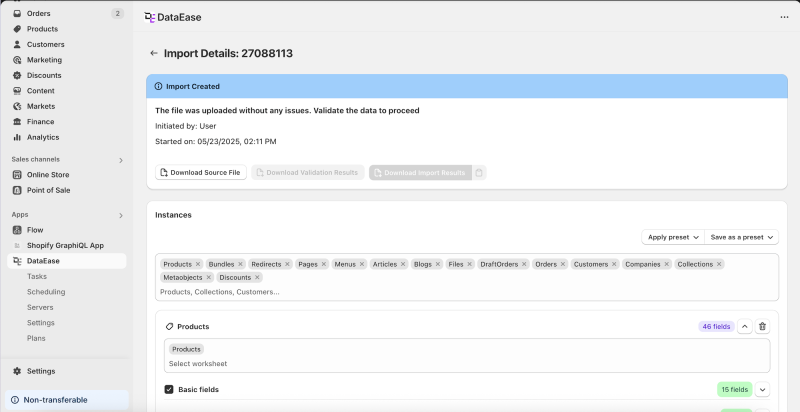
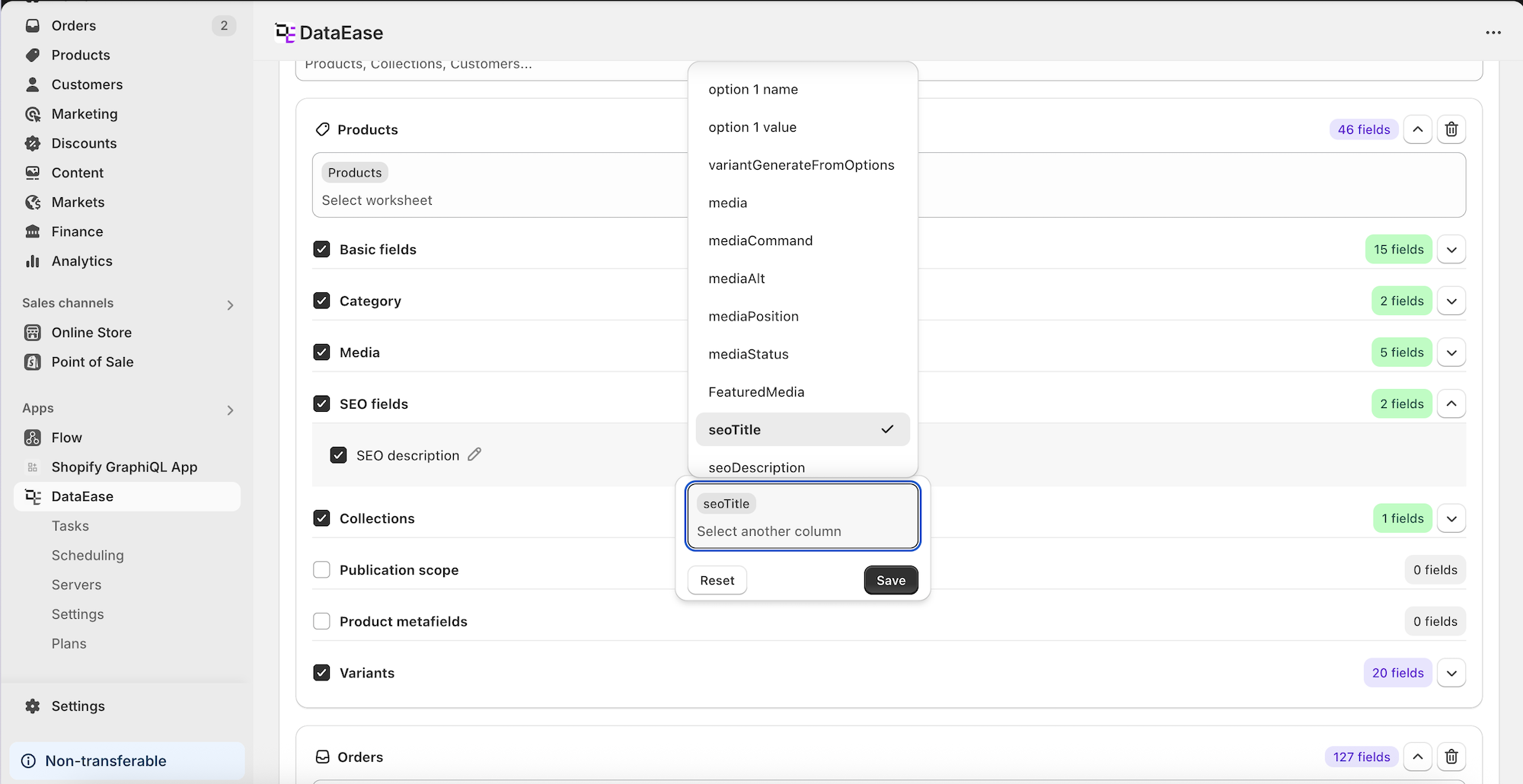
- Detected entities shown; you can add others
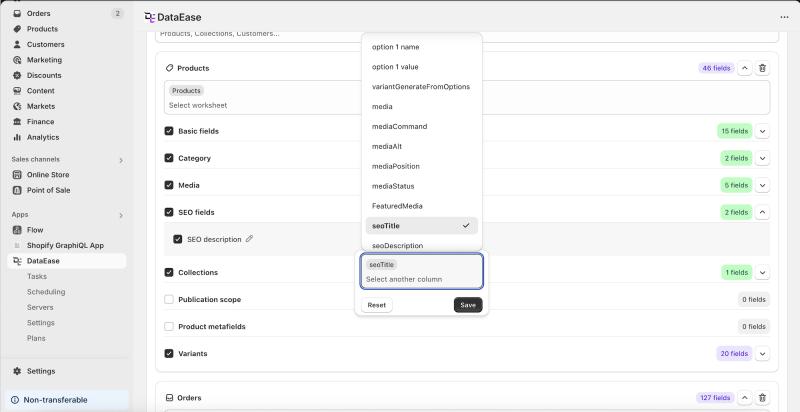
- Map file columns to entity fields manually if needed
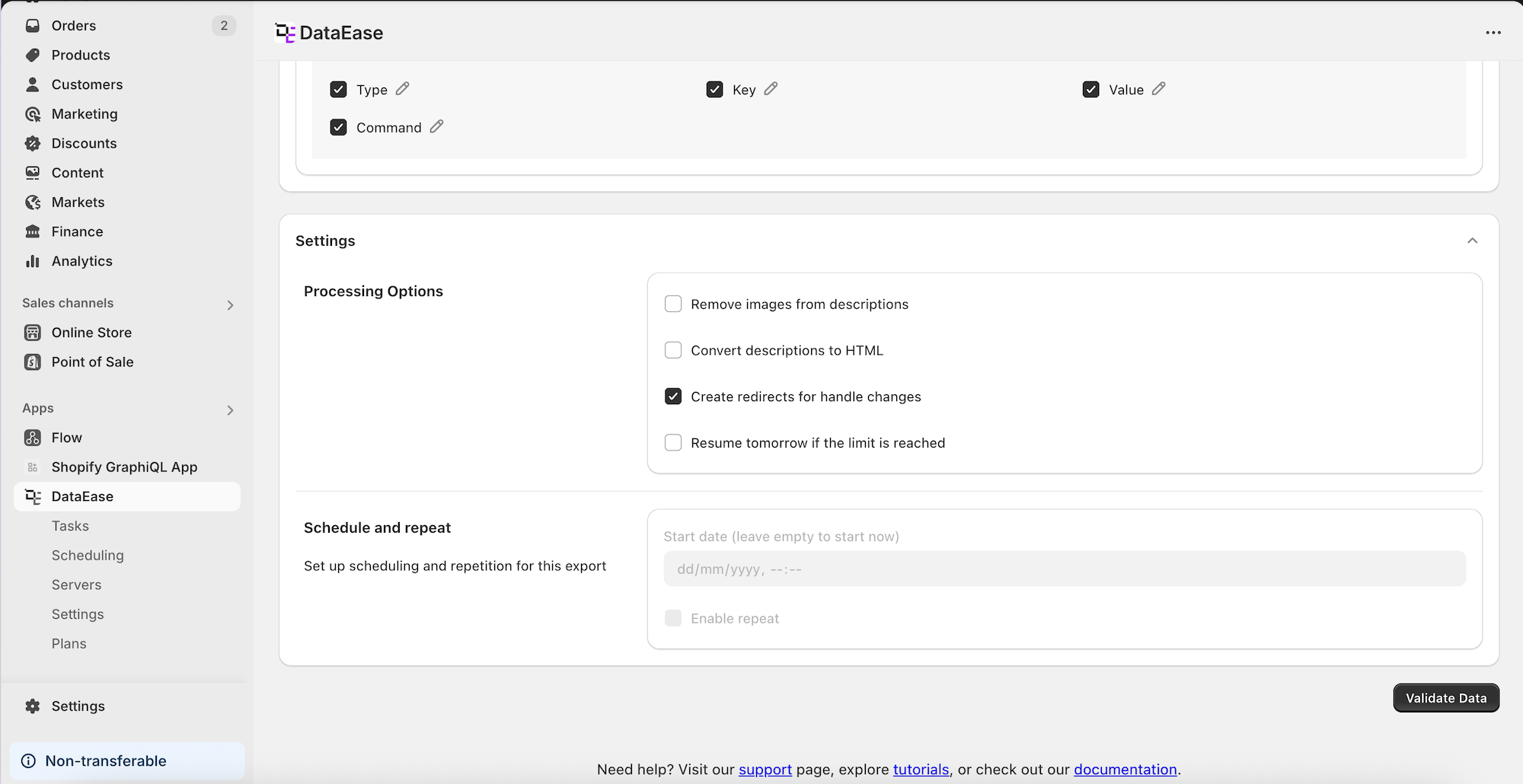
- Import Settings:
- Schedule
- Delete body HTML images
- Convert description to HTML
- Auto-handle redirects
- Auto-extend job on daily limits
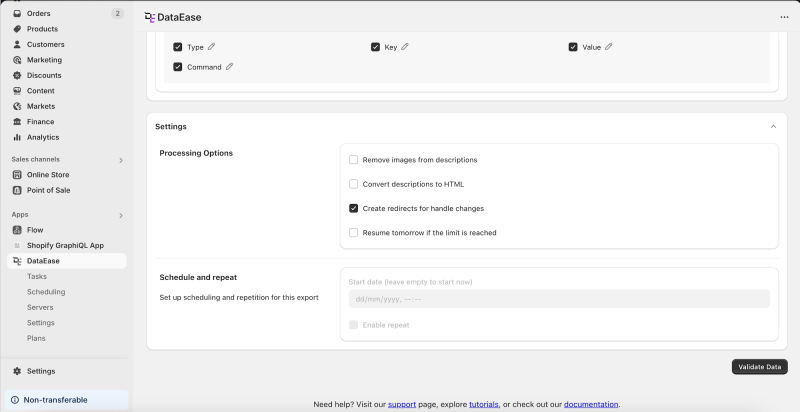
- Validate Data - dry-run that finds issues
Validation Results
Section titled “Validation Results ”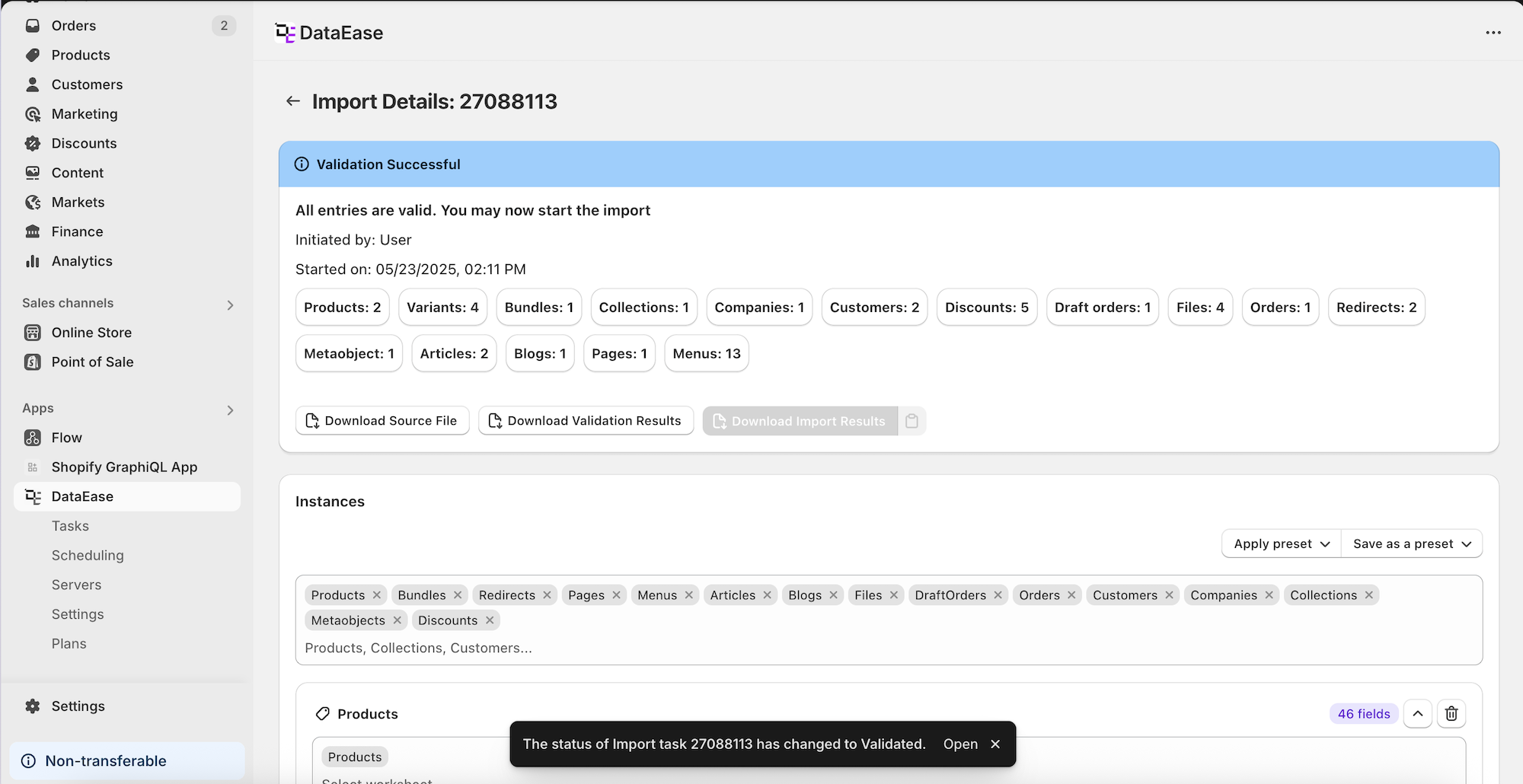
- Shows entity name and row count
- Status can be:
- ✅ Success
- ⚠️ Partial with errors
- ❌ Failed
- Download file with row-by-row problems
- Click Run Import to continue
Import Progress & Results
Section titled “Import Progress & Results ”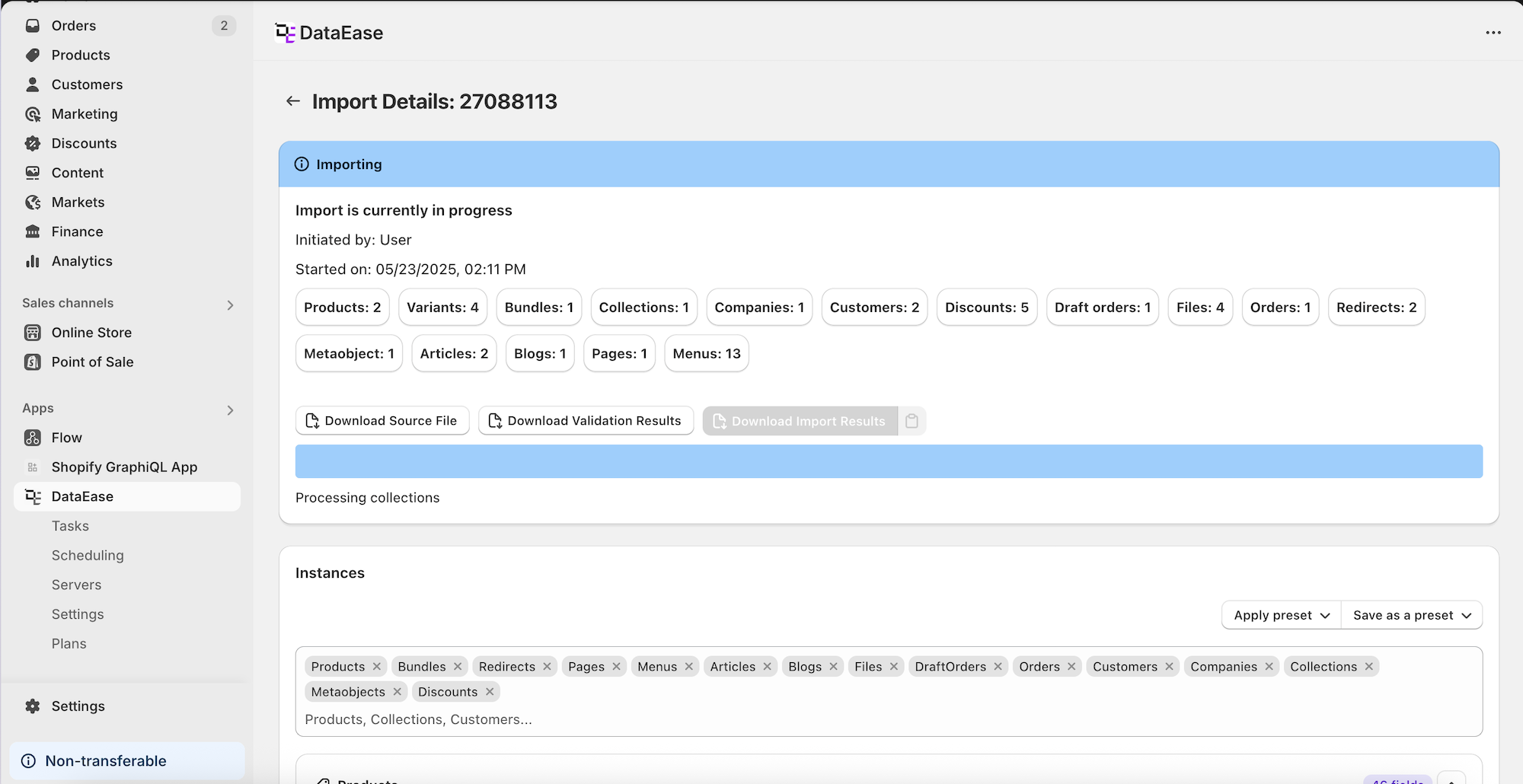
- Progress bar for active import
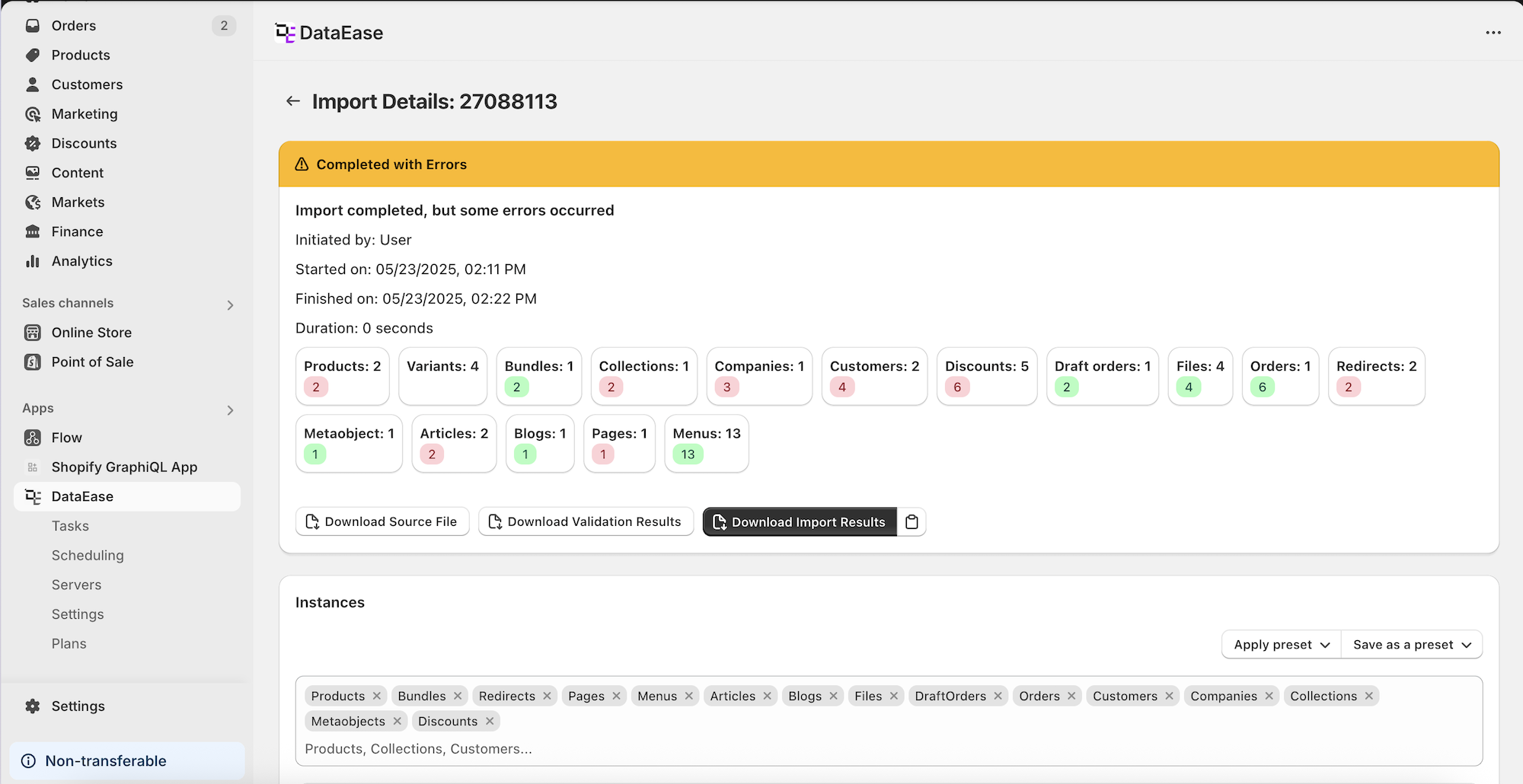
- After finish:
- Entity list with success/error row counts
- Download import result for full report
Task List
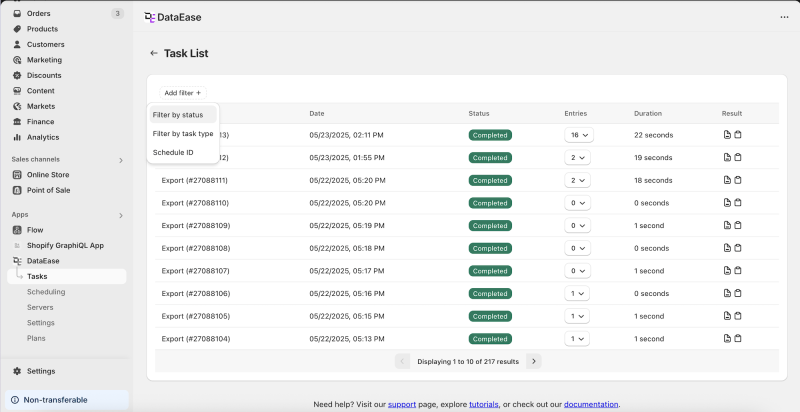
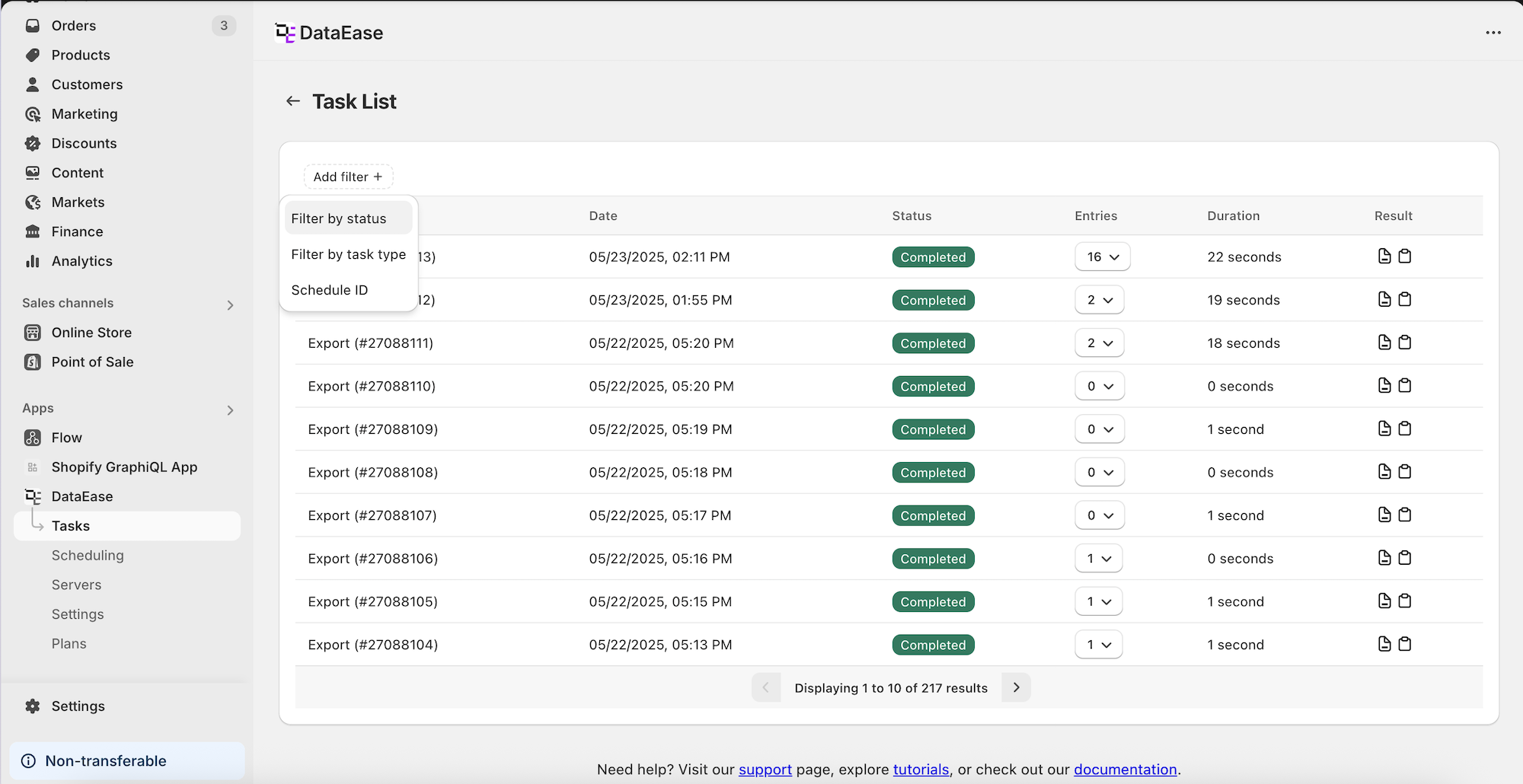
Section titled “Task List ”- See all jobs-past and current
- Filter by:
- Status
- Task type
- Schedule ID
- Download results or click to open the job
Scheduled Tasks
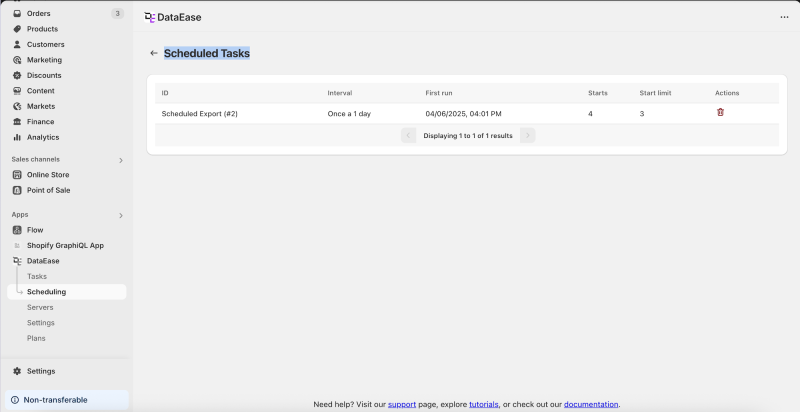
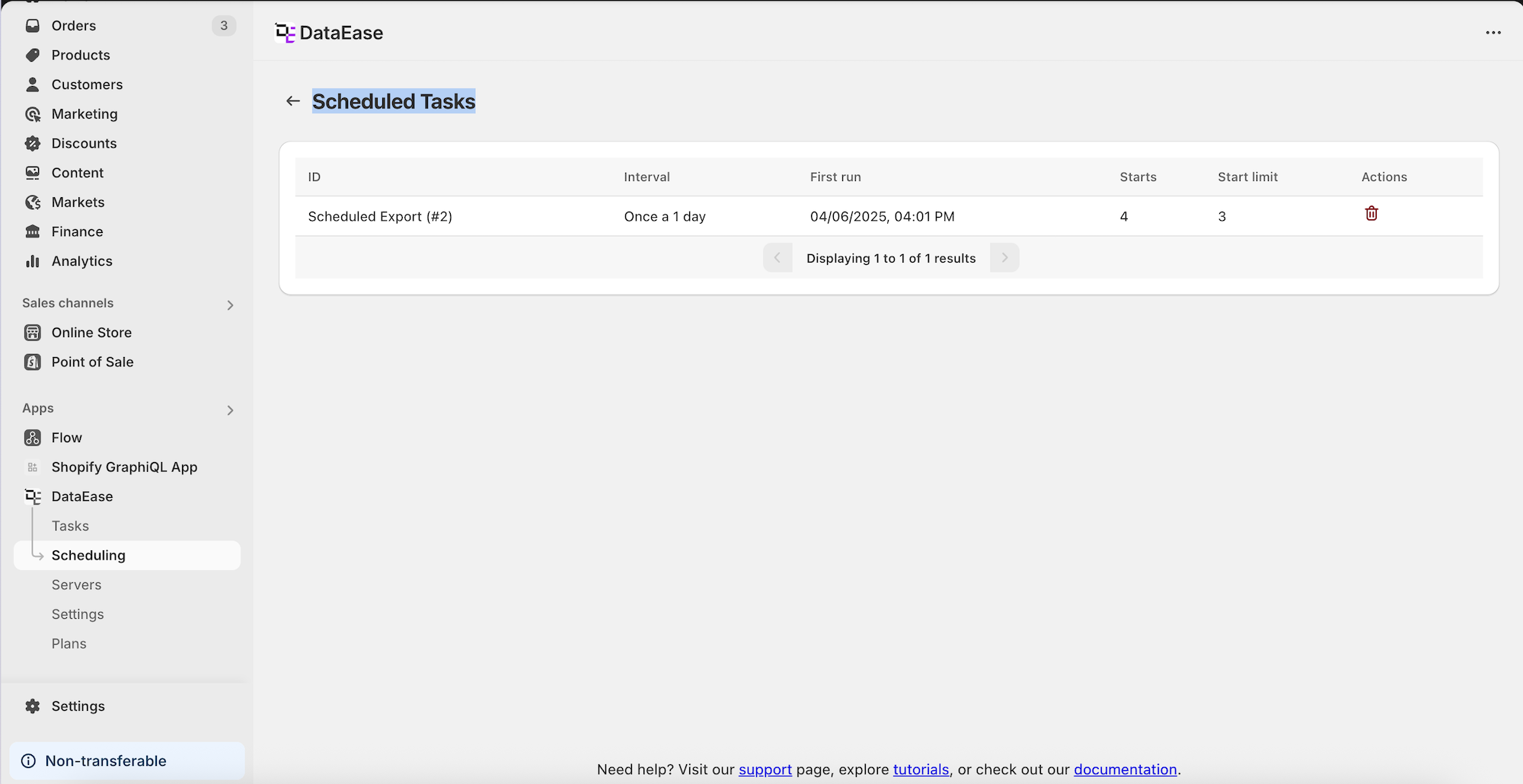
Section titled “Scheduled Tasks ”- View and manage recurring jobs
- See:
- Progress
- Upcoming run
- History
- Cancel jobs or drill into job runs
Servers
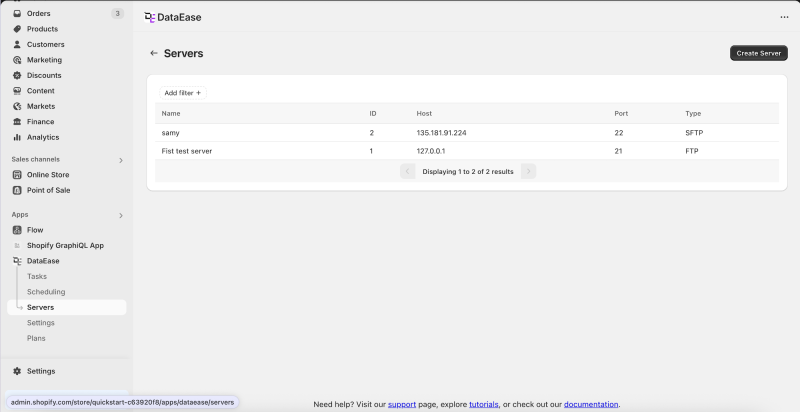
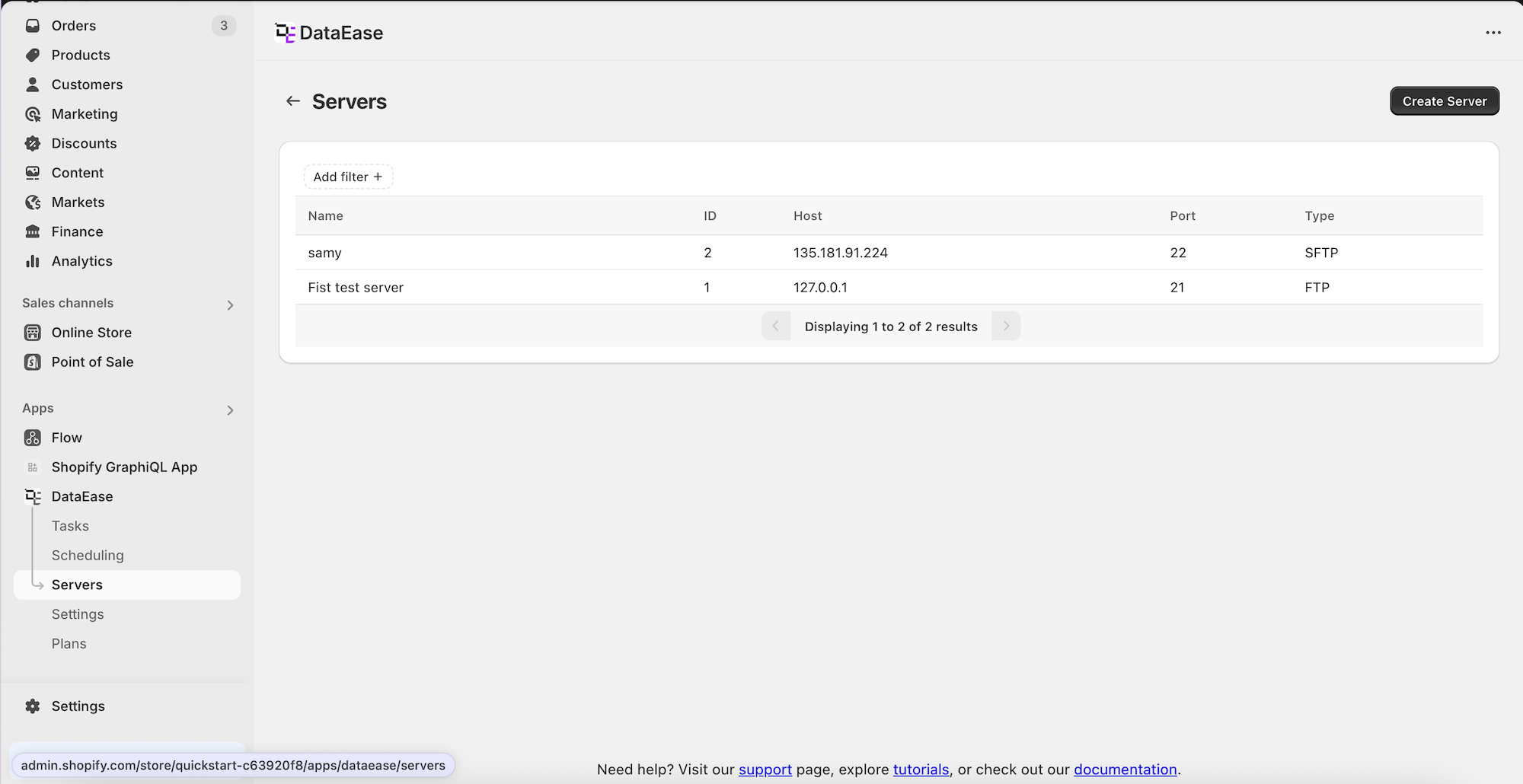
Section titled “Servers ”- See all your FTP/SFTP servers
- Filter/search list
- Use Create Server to add new one
Add Server
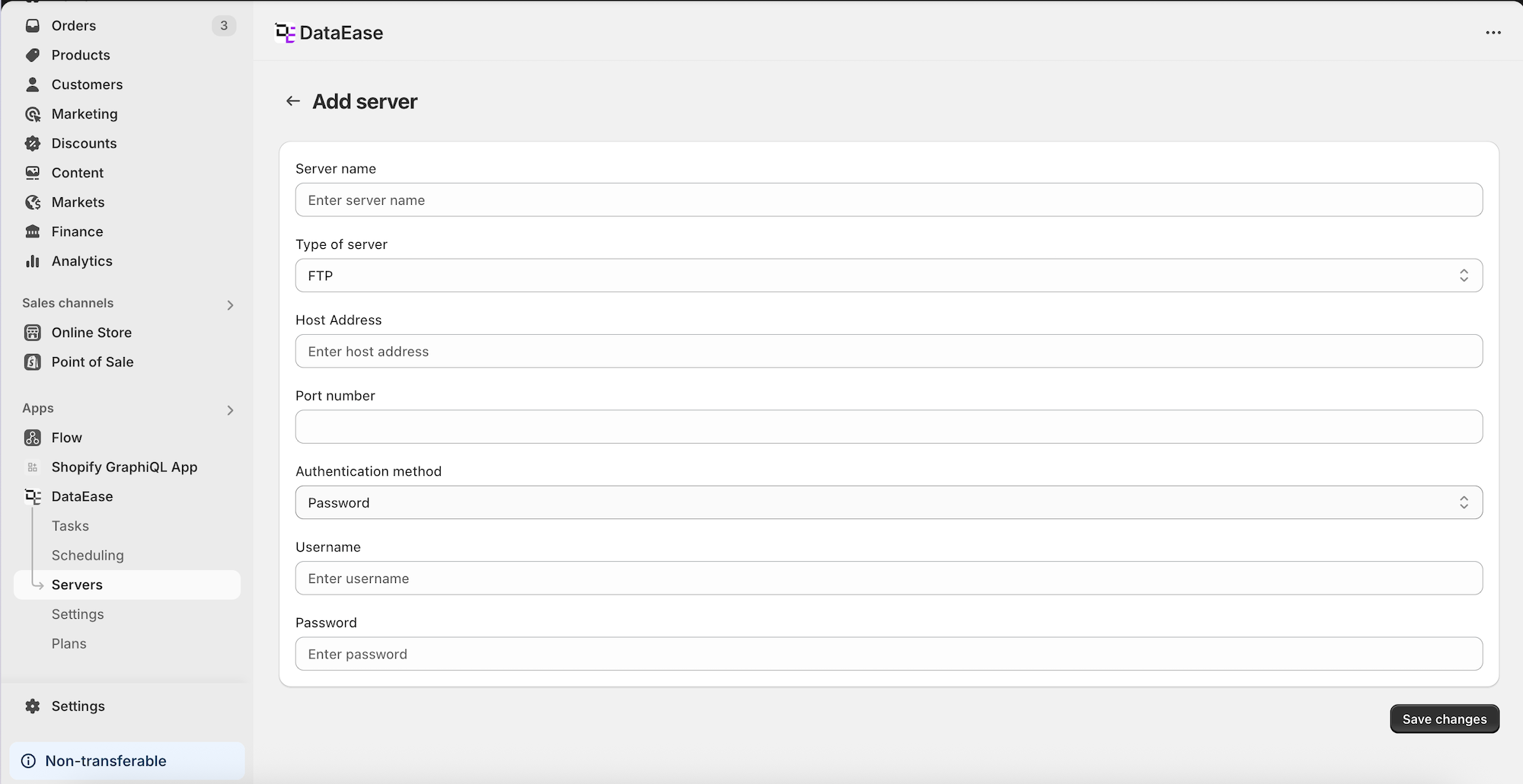
Section titled “Add Server ”| Field | Description |
|---|---|
| Server Name | Your custom name |
| Type | FTP or SFTP |
| Host Address | e.g. ftp.example.com |
| Port Number | Usually 21 (FTP) or 22 (SFTP) |
| Auth Method | Password or Private Key |
| Username + Password | For Password login |
| Username + Private Key | For Private Key login |
 |
Application Settings
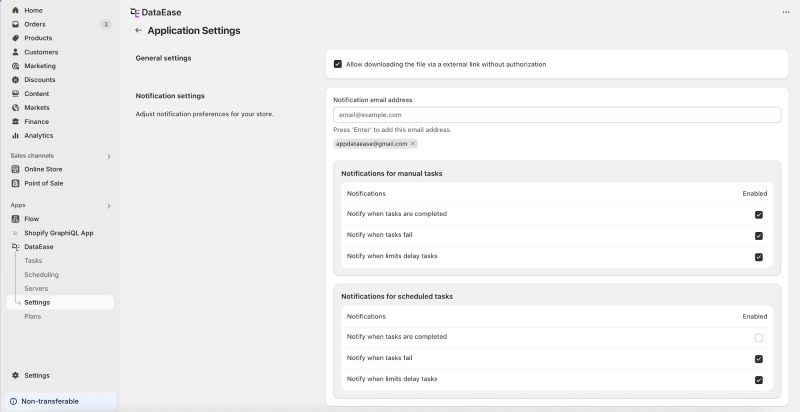
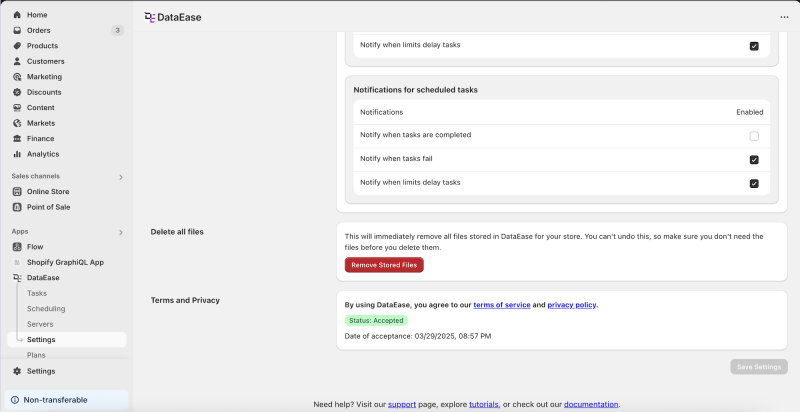
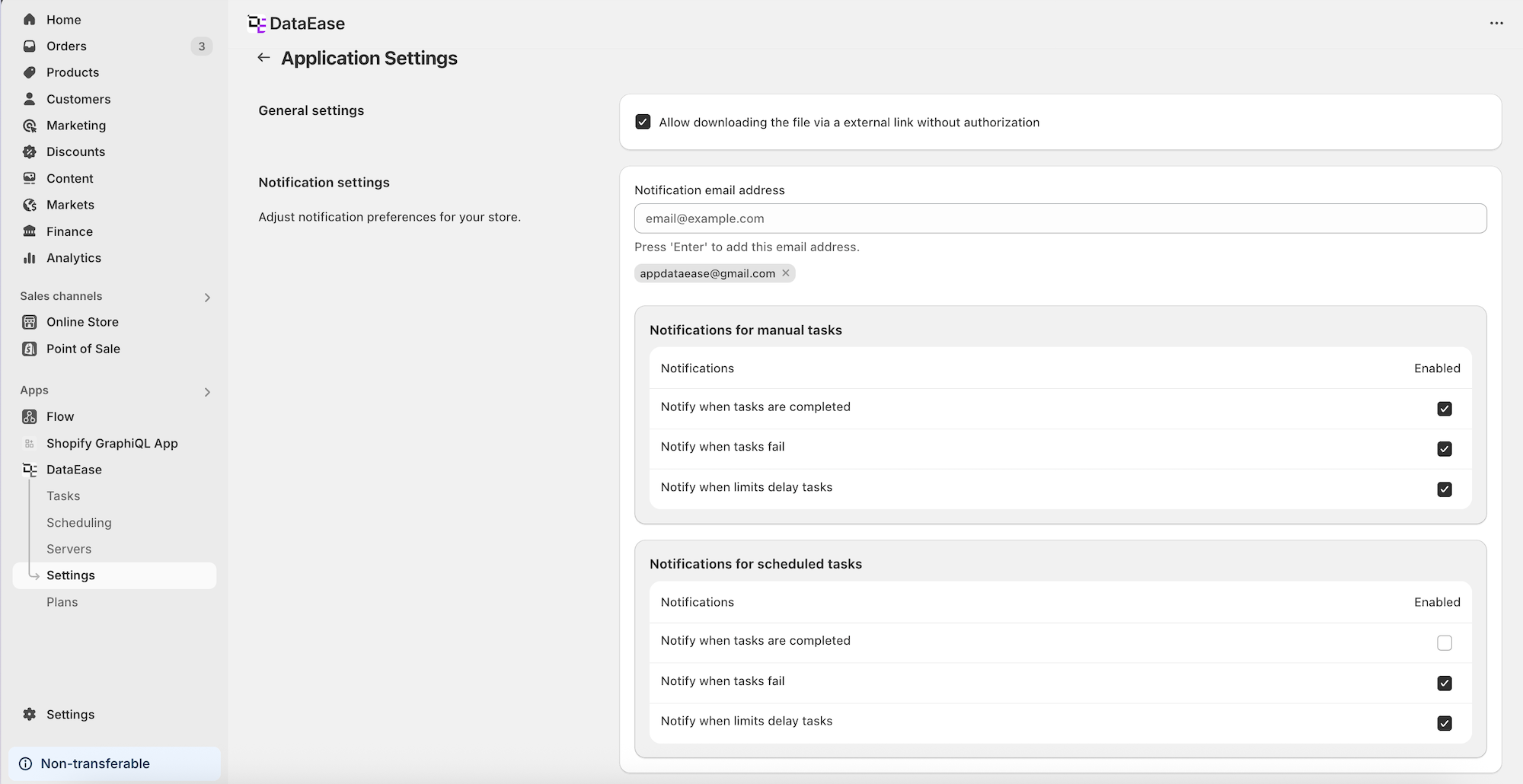
Section titled “Application Settings ”- Allow public download links
- Add email addresses to get notifications
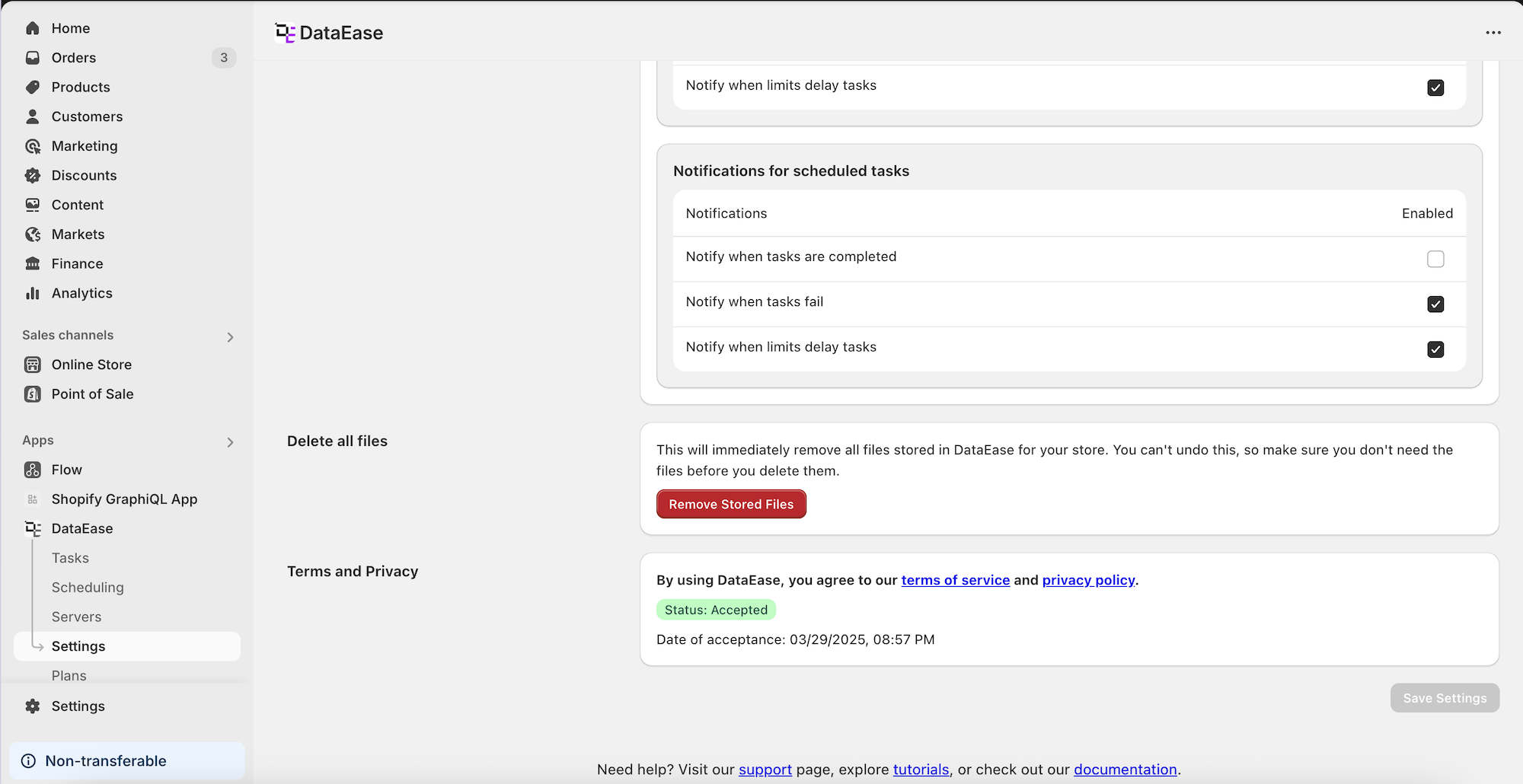
- Notification options for:
- Task completed
- Task failed
- Task delayed
- Option to delete all stored files
- See Terms of Service status
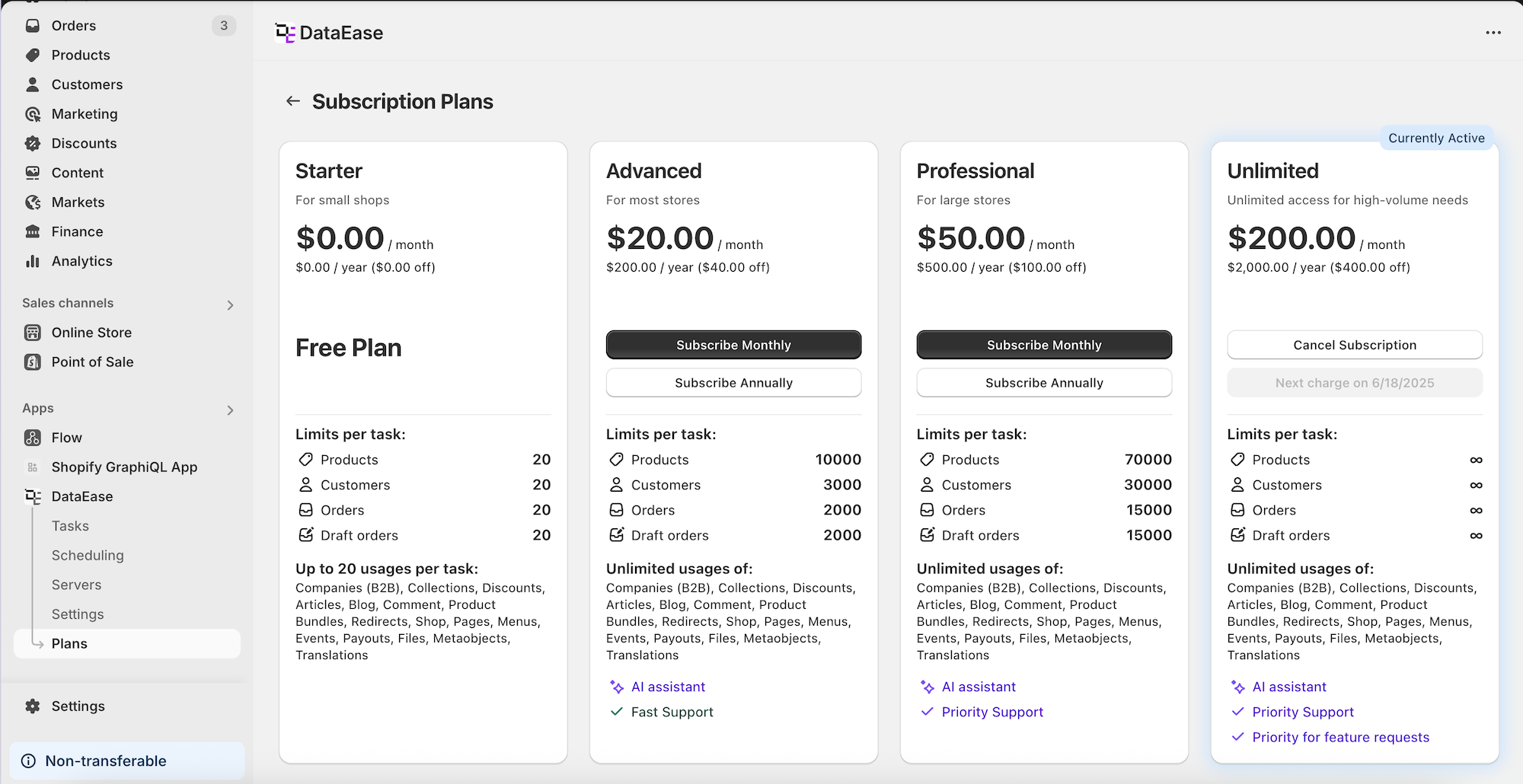
Plans
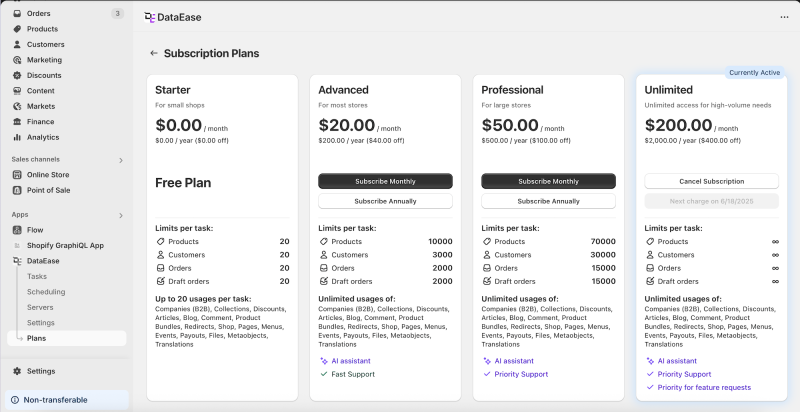
Section titled “Plans ”- See your current subscription
- Compare:
- Starter
- Advanced
- Professional
- Unlimited
- Plans show:
- Monthly/yearly prices
- Task limits
- Unlimited usages
- Features like AI assistant and support levels
- Switch plans or cancel subscription easily
Need Help?
Section titled “Need Help?”- Use the AI assistant inside the app
- Visit the support page, read tutorials, or browse the documentation at the bottom of the app