Scheduling
DataEase allows you to schedule exports and imports so your Shopify store stays in sync with other systems. This is helpful for updating prices, syncing inventory, or sharing data with ERP and warehouse systems.
📦 Scheduling Export Tasks
Section titled “📦 Scheduling Export Tasks”To automate your export process, you can schedule a task to run at a specific time.
How it works
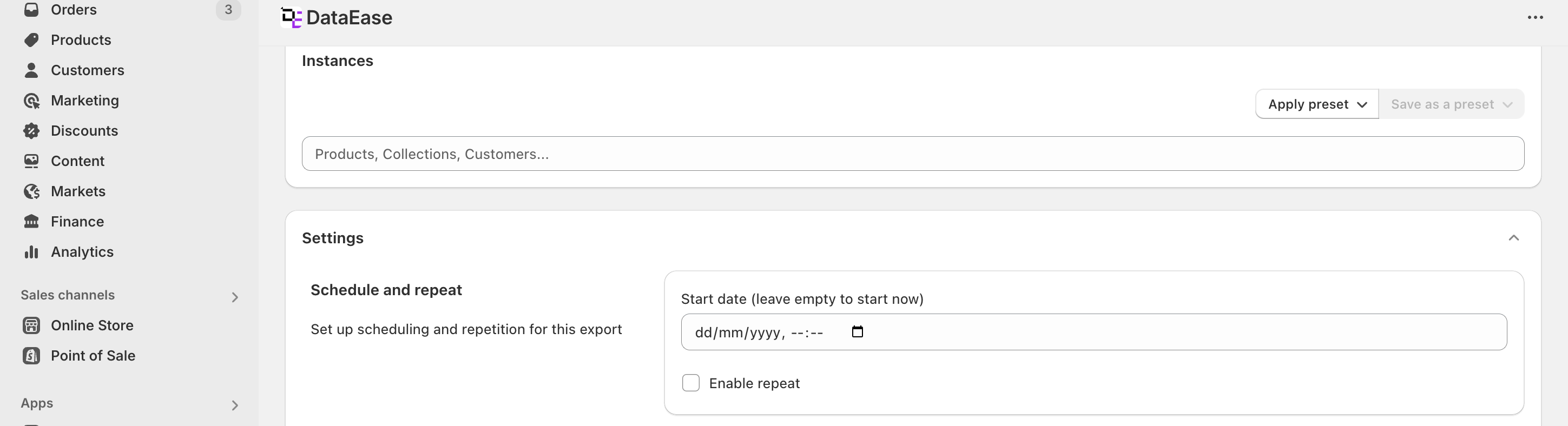
Section titled “How it works”When setting up an export, you’ll see the field Start date (leave empty to start now). Here, you can choose the exact date and time when the export should begin.
If you want the task to repeat automatically, turn on the Enable repeat option and configure the following:
- Interval – the time between each run (for example, every 1 day).
- Frequency – how often the task should repeat (e.g. daily, weekly).
- Number of repeats – how many times the task should run.
0means the task will run forever.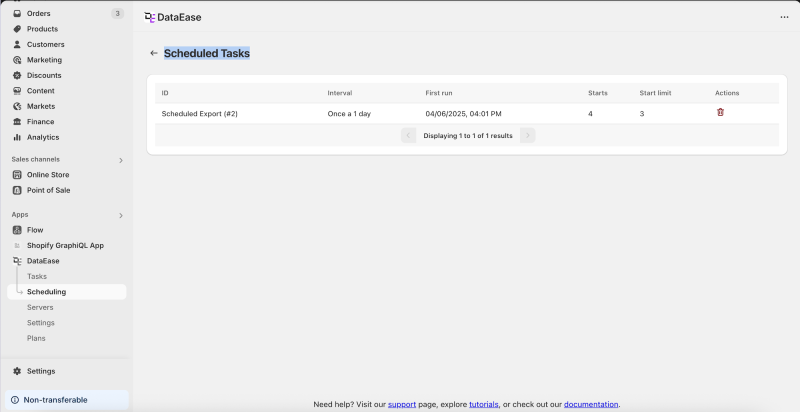
💡 Use Case: You want to send your product list to a partner every morning at 6:00 AM. Set the start time, enable repeating, choose “daily” frequency, and set the number of repeats (or 0 to run forever).
Result File Settings
Section titled “Result File Settings”There are two ways to access your export results:
-
Fixed Filename: Go to Result file settings → Filename and enter a name. The file will be overwritten with each export. You can access it anytime via the same download link.
-
FTP Server: You can also send the result file directly to an FTP or SFTP server. This is helpful for integrations with ERPs or other systems.
🔄 Scheduling Import Tasks
Section titled “🔄 Scheduling Import Tasks”Scheduling imports is useful for automatically updating your store’s product data, like prices or stock levels.
How it works
Section titled “How it works”To schedule an import:
- Upload your import file or provide a link to it.
- Scroll to the Import Options section.
- Set the Start date and enable Repeat if needed.
Just like in exports, configure:
- Start date (leave empty to start now)
- Enable repeat
- Interval, Frequency, and Number of repeats
Setting0for repeats will make the task run forever.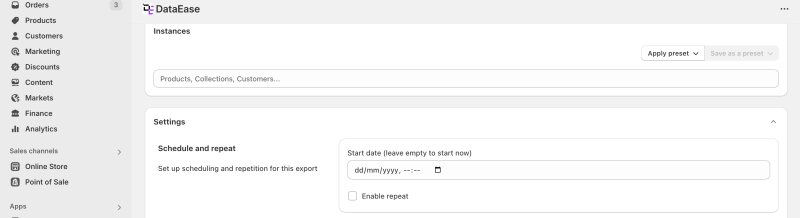
💡 Use Case: You want to sync your inventory every hour using a file from your warehouse system. Upload the file or provide a link, schedule it to run every hour, and set repeats to 0.
📅 Viewing and Managing Scheduled Tasks
Section titled “📅 Viewing and Managing Scheduled Tasks”You can view all your scheduled jobs by going to the Scheduled Tasks page (menu item: Scheduling).
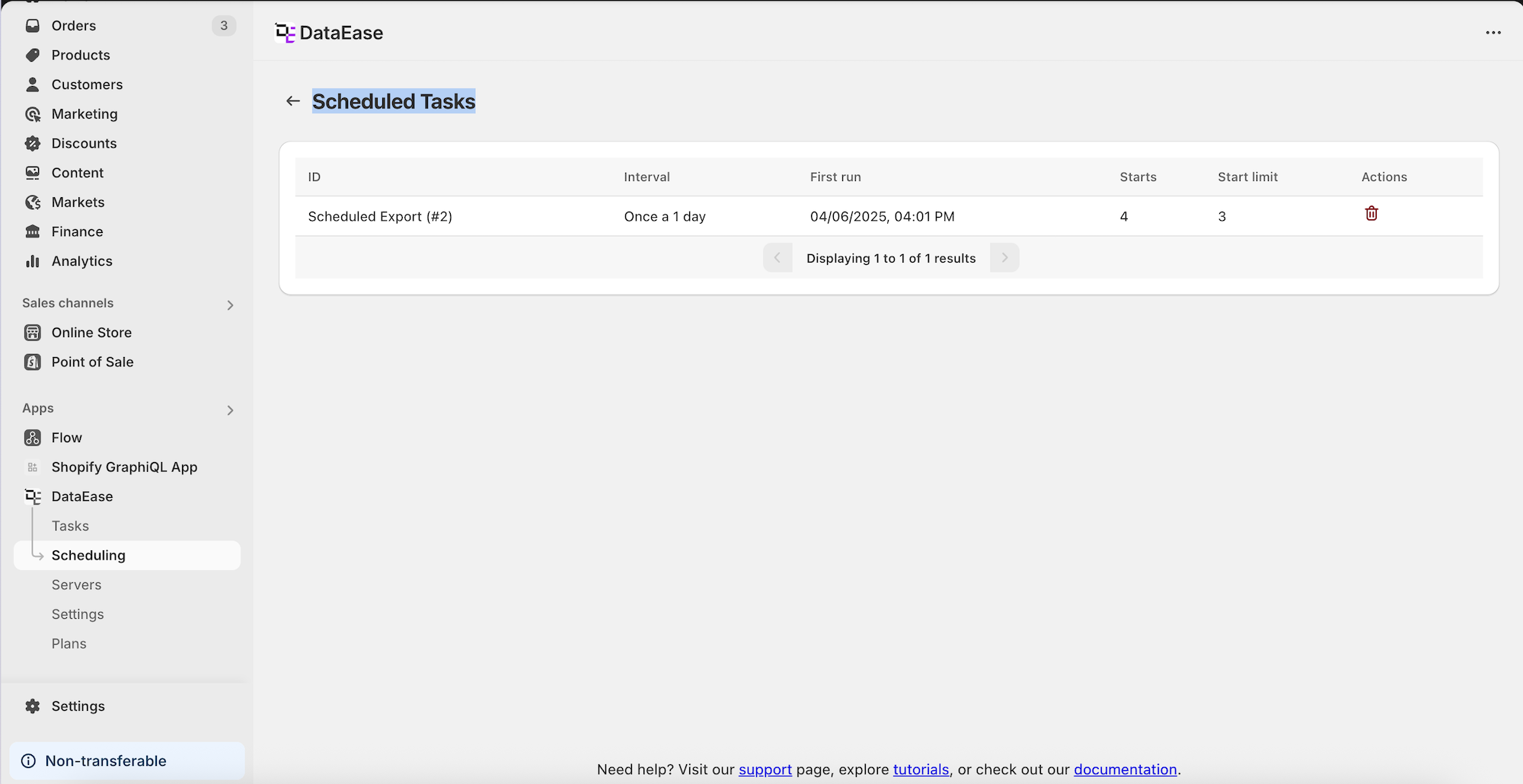 On this page, you’ll see a table of all active and completed scheduled tasks. You can:
- View the progress of current tasks
- Cancel a specific task or all future scheduled runs
- Click the task name to open the Task List and see every run tied to that schedule
💡 Use Case: You want to review which tasks are set to update prices overnight. Go to Scheduled Tasks, find the task by name, and see all runs linked to it.
🔔 Notifications for Scheduled Tasks
Section titled “🔔 Notifications for Scheduled Tasks”In the Application Settings page, you can configure notification preferences for your scheduled tasks.
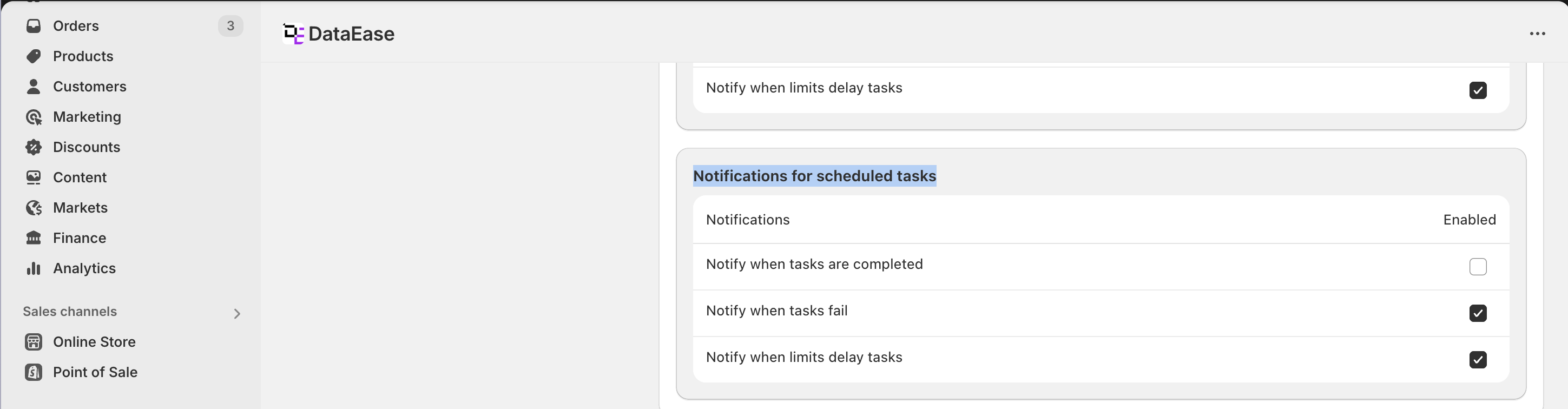
By default, DataEase sends emails only when:
- A task fails
- Your Shopify daily API limit is reached
You can change this setting to receive more (or fewer) updates based on your needs.
💡 Use Case: Your team wants to be notified each time an inventory import finishes. In Application Settings, enable notifications for successful imports as well.
With scheduling in DataEase, you can keep your store up to date without manual effort-day or night.